- Please click on the VPN icon on the clock tray of your system:

- If you don’t find it in the Clock Tray, click on the Start Button > All Programs > Cisco Folder, open it until you find the icon
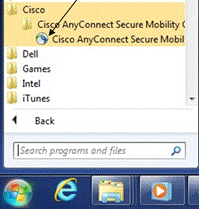
- The following window will appear:
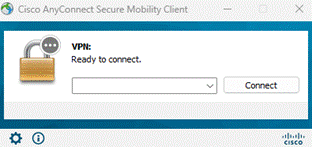
- Please enter the correct address. If you need the address, please submit a ticket or look for this PDF on your computer. When you first open the VPN, you need to type it in. Next time you open it, the path should be there. Click Connect.
- Group will be AnyConnect
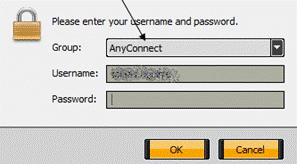
- Enter your Username and Password
- The credentials are your computer credentials you use to login into
- Do not use your email address, majority of the time it is FirstName.LastName
- If you are working remotely and your password does not work anymore, your password has probably expired. Please submit a ticket to have it reset.
- Once you connect the icon on the clock tray will change and show a lock

- You are connected to the PED Network. The R drive should be available now
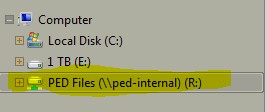
- You may need to enter your credentials again. If so, please make sure you enter pednm\ before your username.
Was this article helpful?
That’s Great!
Thank you for your feedback
Sorry! We couldn't be helpful
Thank you for your feedback
Feedback sent
We appreciate your effort and will try to fix the article