Welcome to PED! This article contains some information to help you get started.
Tickets and Questions
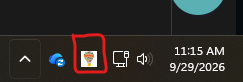
To submit a ticket, your computer will have a shortcut that looks like the NMPED logo as seen the example screenshot. Clicking on the logo will give you the option to submit a ticket or open our FAQ and Solutions of Knowledgebase. Submitting tickets is faster than emailing or asking in person as any available agent will be able to pickup the ticket. Check our list of FAQ articles as we may have the solution or answer you are asking already on there.
If you will like to test this, try submitting a ticket requesting DocuSign.
Note: Some tickets, specifically requests to access certain things, will need to be submitted by your supervisor
Computer and Technology
You will be given a Dell computer. Your profile will be setup with us. Your username will be Firstname.Lastname. Your password will be provided by us. If you want to change your password, you can do so by pressing CTRL+ALT+DEL. The password is set to change every three months, requires 12 characters, and needs to have at least a number, an uppercase letter, lowercase letter, and symbol.
The apps that you need will be installed and setup, which will be Microsoft Office applications and Adobe Pro. Your computer will be on our Device Management software to allow us to push updates to your computer, install applications, or remote into your computer if needed. The Wi-Fi does not have a password, instead your computer will automatically connect to it if it is not connected via wire and in range.
Along with the computer, you will be provided with the charger, two monitors, a docking station, and a keyboard/mouse combo. Upon request, we can also provide a USB webcam and a USB headset. We know people prefer to use their own equipment, but due to policy, we will not install third-party apps for users. Bluetooth-connected devices such as earphones, mouse and keyboard combos are fine.
Note: Everyone will receive a charger but if you lose it, we may not be able to replace it. Any technology that we do not provide won't be supported by us as we are not allowed to touch personal devices.
Phone
Your iPhone is setup on our Management software just like your computer. You will be given a managed business apple account and the phone will have apps pre-installed. You can see the full list of installed apps here in the iPhone Apps article. The most important app on your phone will be the Microsoft Authenticator, as you will need that to authenticate when you sign in Outlook. If you ever misplace or lose your phone, please let us know immediately so we can change it to lost mode and locate it. If you need your Apple account password, let us know and we can provide it or reset it.
Alongside your phone, you will be given a charger, charging brick, and if we have them, a screen protector, and phone case.
Note: Everyone will receive a charger, but if you lose it, we may not be able to replace it.
Outlook and Microsoft Apps
Your email address will be FirstName.LastName@ped.nm.gov. Your password will be the same as your computer password until you change it. You can follow this How to Change your PED Outlook Password guide if you want to change it immediately. Your Microsoft Authenticator app will be your primary authentication method when signing in so please keep your phone handy. All Microsoft apps will be signed in and working.
Note: Contractors do not have access to the Windows Applications and will need to use the web version
R Drive
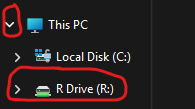
If you are asked to access the R Drive, that is a shared network drive that we have. You can only access this if you are on our network. If you are not in the Santa Fe office, please connect to our PED VPN. Once you are on the VPN or if you are in the Santa Fe office, you can expand This PC and you will see the R Drive (R:).
Adobe Pro
Adobe Pro will be your default PDF Viewer. It is tied to your Outlook account, so you will need your Outlook email and password to sign in.
Note: Contractors do not have access to Adobe Pro and will need to use Adobe Reader
Printers
Xerox printers will be automatically pushed to your computer. If you will be stationed in ABQ, please let us know ahead of time so we can get the ABQ printer setup before you go. Your bureau is what will determine which Xerox printers you will have access to and what your printer code will be. Please keep in mind that only members of the Special Education Bureau are allowed to use the first floor Xerox printer in Albuquerque. When asked for a printer code, please search for the Xerox Accounting Code file on your desktop to get your code. Your code is hard-programmed into your computer and the printer; changing your code on your own will cause printing issues. Please do not change your code.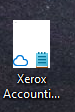
If you haven't gotten access to the Xerox printers or if you need access to any other printers, please submit a ticket and we can help you get setup.
Google Drive
If you are given access to a Google Drive account, the Google account is FirstName.LastName@ped.state.nm.us. If you are sharing something with someone, please use that google account, then notify them through your @ped.nm.gov email. If someone shares something with you and they let you know, click on the Shared with me to view the files. Please keep in mind if you use your own personal Google account you will not be able to share or receive files from state created accounts.
Note: this does not come with gmail so please never use this when asked to provide an email.
NOVA/STARS
Your supervisor needs to request the NOVA/STARS account when filling out the form. If they did and you don't know your password, you can use the Get My Password link to do so. Your username will be your Outlook email.
Was this article helpful?
That’s Great!
Thank you for your feedback
Sorry! We couldn't be helpful
Thank you for your feedback
Feedback sent
We appreciate your effort and will try to fix the article