These instructions will guide you through sharing your Outlook calendar with others, allowing them to view all the details of your events.
Steps:
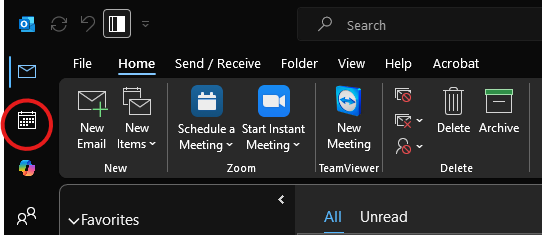
- Open Outlook Calendar: Launch Microsoft Outlook and navigate to the Calendar view.
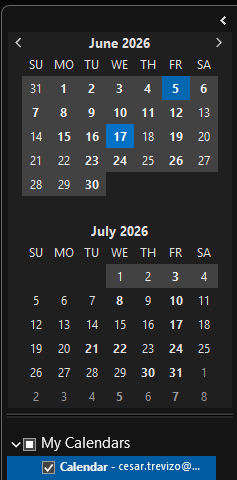
- Locate "My Calendars": In the left-hand navigation pane, you'll see a section titled "My Calendars." This lists all your personal calendars.
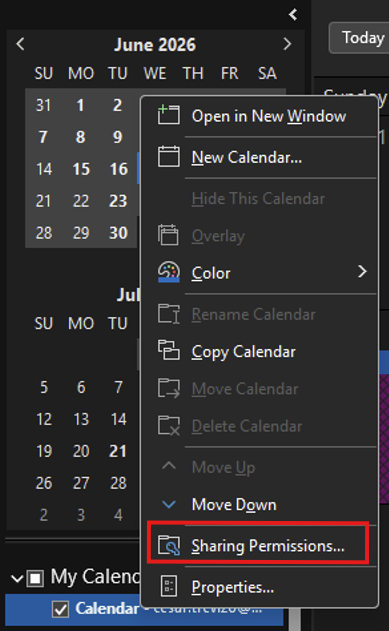
- Right-Click and Select "Sharing Permissions": Choose the specific calendar you wish to share and right-click on its name, then click on "Sharing Permissions"
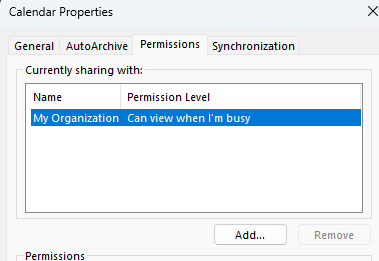
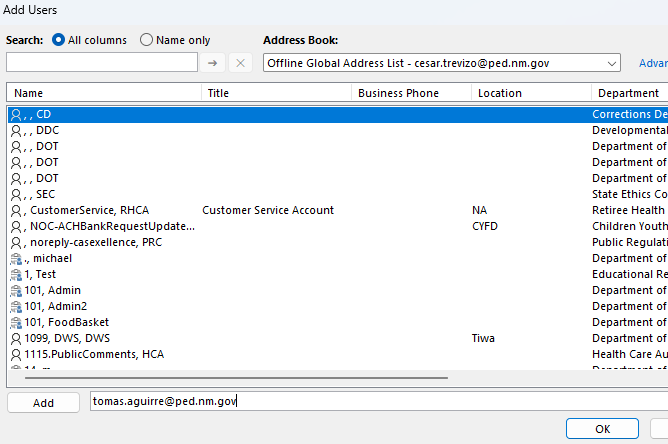
- Add a User: Click the "Add" button in the sharing permissions window.
- Enter Email Address: Type in the email address of the person you want to share your calendar with. Outlook may suggest contacts from your address book as you type.
- Set Permissions Level: Select the user you added and underneath, select the permission you want the user to have, then click "Apply". The permission are as follows:
- Can view when I’m busy: Others can only see that you are busy or free — no details.
Can view titles and locations: Others can see the event name and where it is, but not full details.
Can view all details: Others can see everything in your calendar event, including notes.
Can edit: Others can make changes to your calendar events.
Delegate: Others can manage your calendar on your behalf, including responding to meeting requests.
Was this article helpful?
That’s Great!
Thank you for your feedback
Sorry! We couldn't be helpful
Thank you for your feedback
Feedback sent
We appreciate your effort and will try to fix the article