One of the things many people like to do is open many webpages in browser to easily access different websites. While this is a good way to keep things open for easy access, it can potentially impact your computer's performance, causing the computer to crash or slow down. Instead of opening many tabs at once, it is a better practice to save your websites as shortcuts, close them when they are not in use, and easily open it when you need to. This will help your computer in the long run. The following is a guide to bookmarking and saving webpages.
Instructions on Bookmarks
Step 1: Go the website
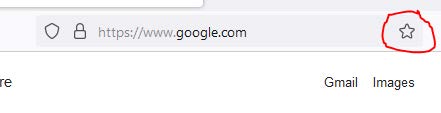
- Open your preferred browser. Navigate to the website you want to bookmark. Click on the star on the right side of the address bar.
Step 2: Edit the details
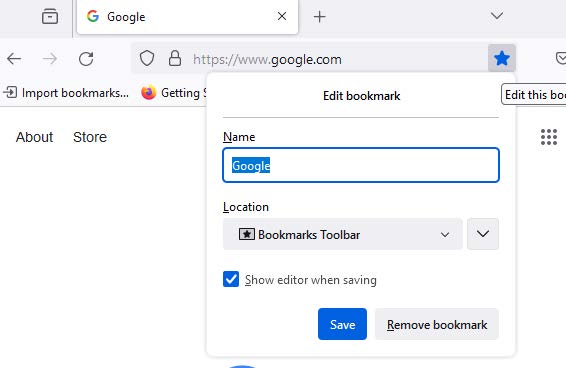
- A small window will pop up. You can edit the name of the bookmark and choose the folder where you want to save it.
Step 3: Bookmark Bar
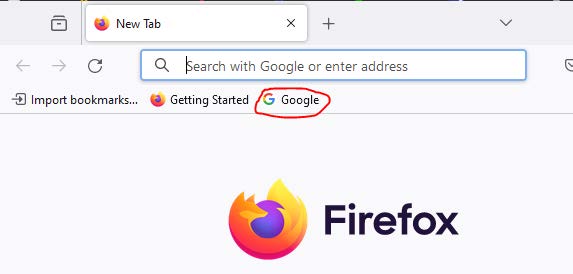
- If you choose to save it in the Bookmarks Toolbar, the webpage will be saved as a shortcut in the toolbar underneath the address bar. You will be able to access the website at any time. If you don’t see the shortcut, then the Bookmarks Toolbar is hidden. To show it, use the keyboard shortcut “Ctrl+Shift+B.
Step 4: Organizing Bookmark Bar
- If you choose to save it in the Bookmarks Toolbar, the webpage will be saved as a shortcut in the toolbar underneath the address bar. You will be able to access the website at any time. If you don’t see the shortcut, then the Bookmarks Toolbar is hidden. To show it, use the keyboard shortcut “Ctrl+Shift+B.
Step 5: Folders
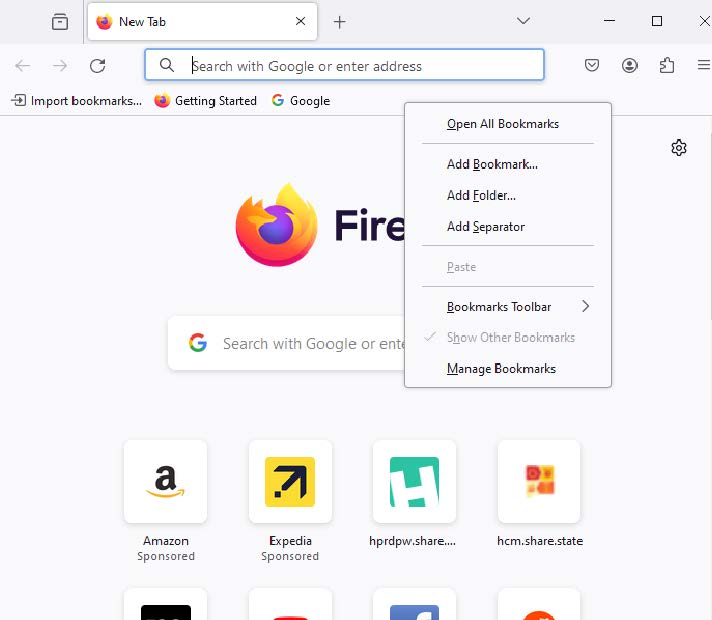
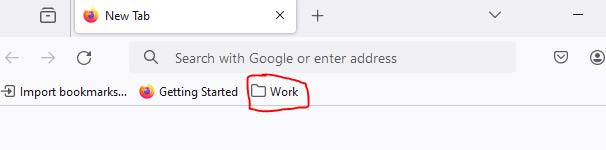
- The following is an example of a folder. You can drag and drop your shortcuts into the folder for better organization.
Step 6: Accessing Bookmarks
- You can view and access all your bookmarks by going to the Bookmarks menu. Click on the three horizontal lines or dots in the top right corner and select “Bookmarks.” Here, you have the option to always show the bookmarks bar, or view other bookmarks saved in other folders or locations.
Was this article helpful?
That’s Great!
Thank you for your feedback
Sorry! We couldn't be helpful
Thank you for your feedback
Feedback sent
We appreciate your effort and will try to fix the article