OneDrive is a cloud storage service from Microsoft that allows you to store files and share them securely. Every user at PED has a 1TB OneDrive, allowing users to backup and store files on the cloud. By default, we are setting up computers to sync with OneDrive.
Using OneDrive is completely safe and there is no way for files to delete themselves or go missing, this only happens if you manually delete these files, replace these files, or don't save your work. This guide will explain and provide additional steps to work with OneDrive.
OneDrive icon meanings:
 -File resides in the cloud only.
  -File resides in the cloud and temporarily on the computer.
  -File resides in the cloud and permanently on the computer.
  -File is syncing.
  -File sync has an error.
Logging in and syncing files to OneDrive:
- Web: Go to OneDrive and sign in with your Microsoft account.
- Desktop App: Open the OneDrive folder on your computer. This can be found in FileExplorer, usually above FileExplorer. The OneDrive icon will appear in the lower right corner.
- Enter your Outlook email address and click Sign In.
- Click on the School/Work account. It will prompt you to enter your Outlook email and password.
- After logging in, keep clicking next.
- Once it’s finished, you should have OneDrive – State of New Mexico in the File Explorer.
Upload Files:
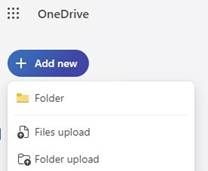
- Web: Click on "Upload" and select "Files" or "Folder". Choose the file or folder you want to upload.
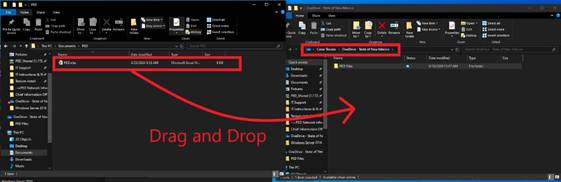
- Desktop App: Drag and drop the file or folder into the OneDrive folder on your computer.
Was this article helpful?
That’s Great!
Thank you for your feedback
Sorry! We couldn't be helpful
Thank you for your feedback
Feedback sent
We appreciate your effort and will try to fix the article