(This is for the desktop version of Outlook; this is different for the web version)
All requests with Shared mailboxes/calendars must be made/approved from the bureau directors/senior managers.
Accessing the shared mailbox
Once access has been granted, please allow at least 30 minutes for the changes to take place. Close Outlook and then reopen.
- You might see it populate on the Folder pane (left side).
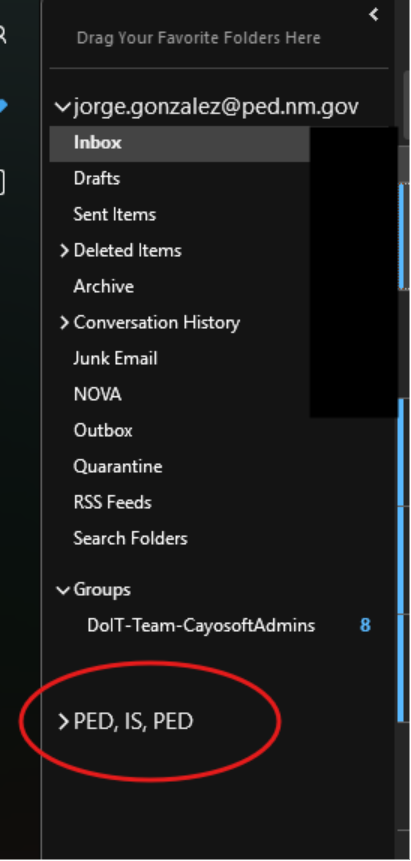
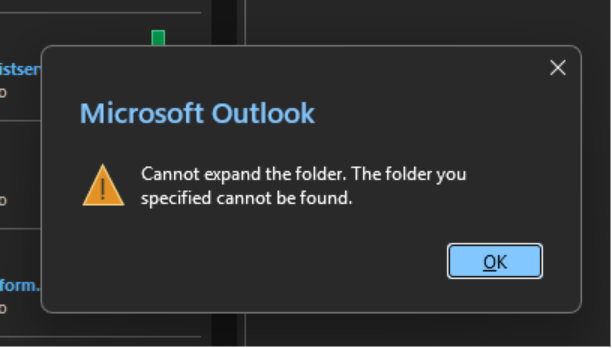
- If you try to open and receive an error like the one below, click OK and give it more time to sync. It is not finished.
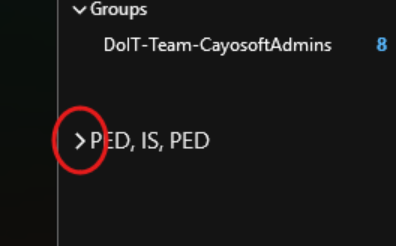
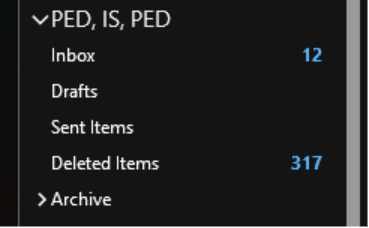
- Once enough time has passed, you will need to toggle the drop-down menu (>) next to the mailbox. Once you do that, you should be able to see the Inbox, Archive, Sent Items, etc.
Sending emails from the shared mailbox
- Create a new email and go to the Options Tab. Make sure From is selected.
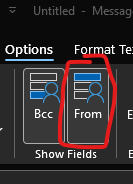
- If you don't see From as an option, click on the three dots at the end of the ribbon.
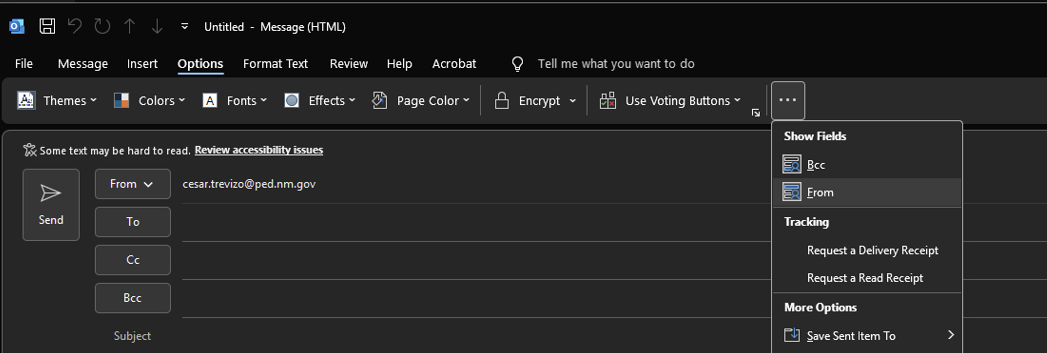
- If you don't see From as an option, click on the three dots at the end of the ribbon.
- Above the To bar, you should now have From.
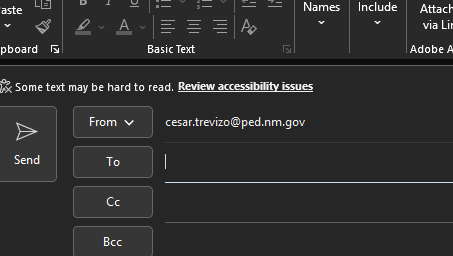
- Click on it and select other Email address.
- In the Send from Other Email Address, click on From..., then enter the shared mailbox email address or look for the name of the mailbox.
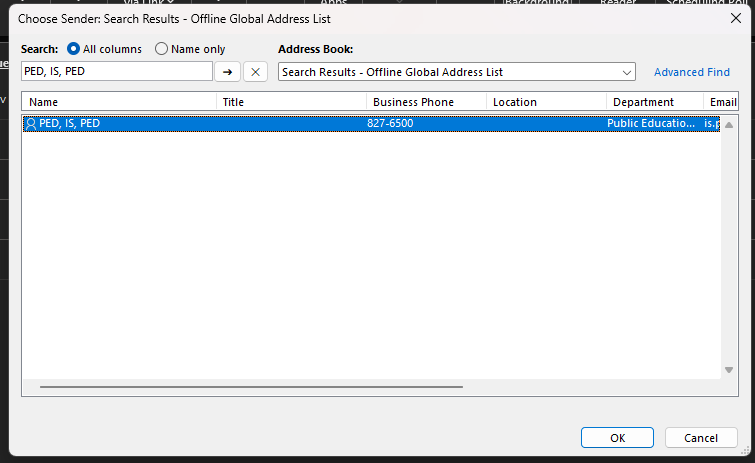
- Highlight and click OK. You should now be able to switch between your mailbox and the shared mailbox.
How to see the shared calendar.
If everything above is done with your system or you just received calendar only permissions, then you may head over to the calendar tab in Outlook.
- You should see it under “My Calendars” or under “Shared Calendars”
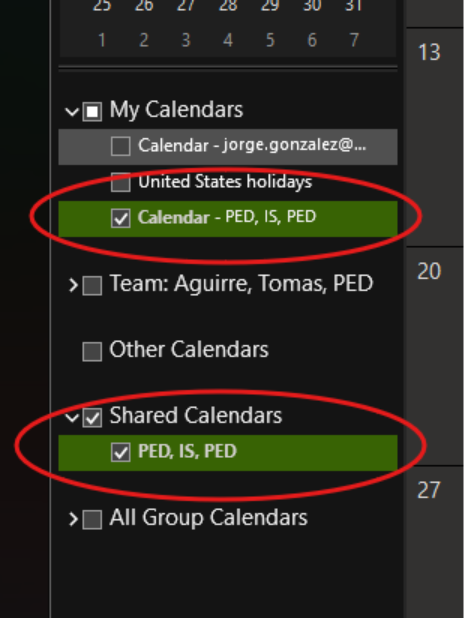
- If you do not see it, but are sure the calendar has been shared with you.
- Right-click on “My Calendars”
- Select Add Calendar
- Select Open Shared Calendar
- Here, enter the email address of the calendar that was shared with you. Hit ok
Assigning Calendar only permissions
To give people access just to the shared calendar (delegate access needed)
- The delegate must access the calendar and right click on it.
- Select Properties
- Select the Permissions tab and hit Add. This will bring up the address book.
- To find someone, please enter their full name. If that does not work, enter their current PED email address.
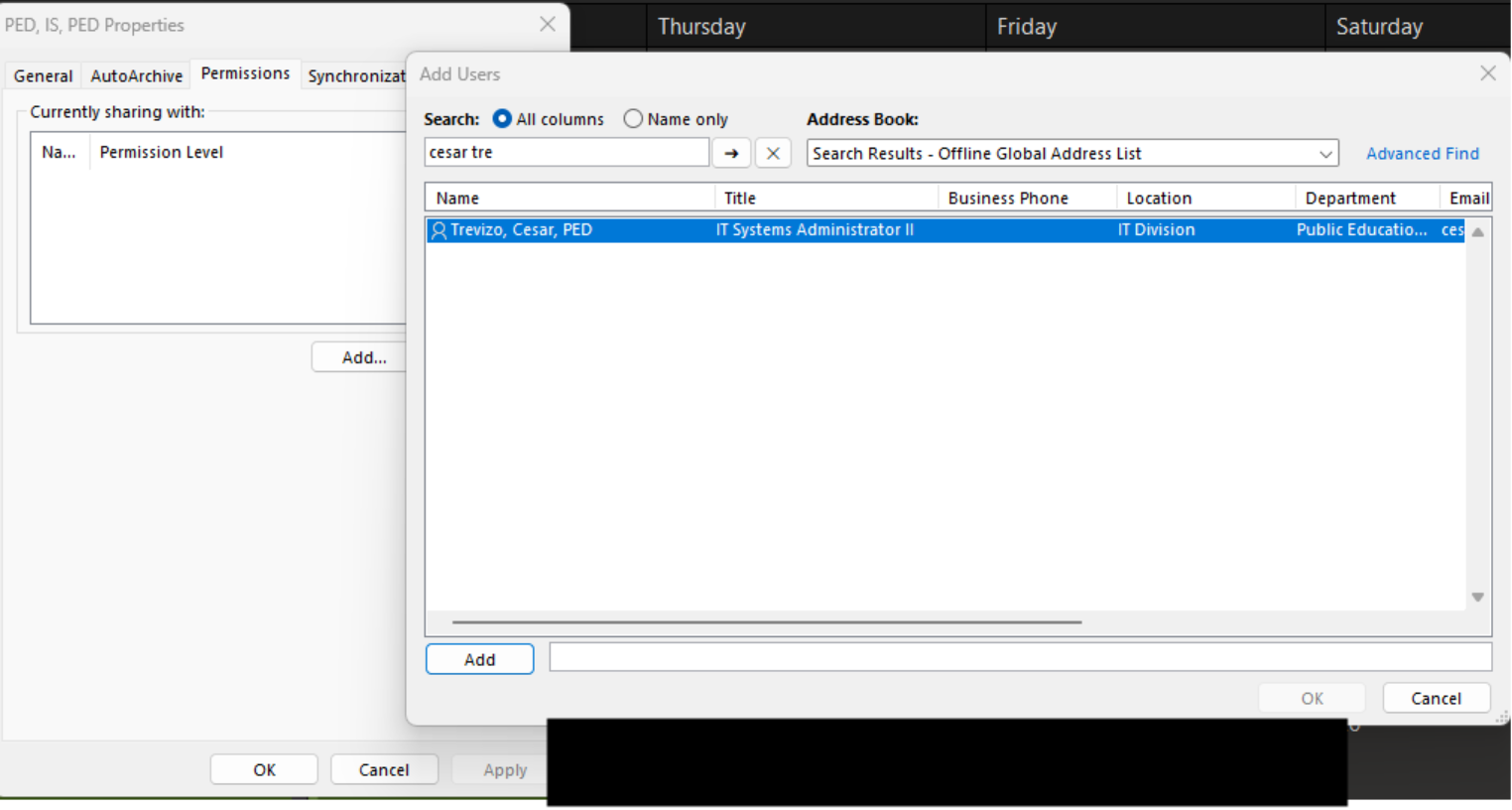
- Double-click on their name or hit add on the bottom left.
- Next is assigning permissions for the calendar. Select editing access or “Can edit,” then select apply or save.
Was this article helpful?
That’s Great!
Thank you for your feedback
Sorry! We couldn't be helpful
Thank you for your feedback
Feedback sent
We appreciate your effort and will try to fix the article