If your monitors just stopped working all of a sudden, please try the troubleshooting steps below to fix it:
- Make sure the monitors have a solid white light
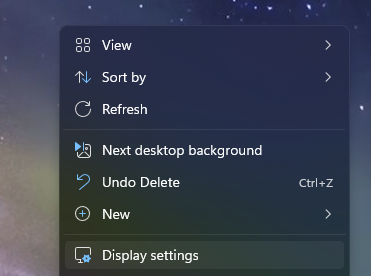
- Right click on empty desktop and click on Display Settings:
- Make sure you have all the monitors displayed, 2 for the monitors and 3 if you use the laptop as a screen as well:
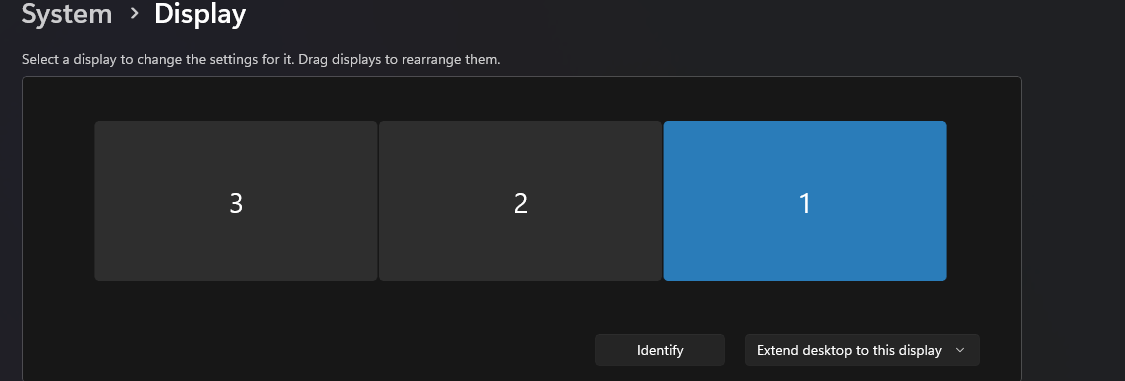
- If you only see one screen but it shows 1|2, change the option from Duplicate desktop to Extend desktop. You can click and drag the monitors around to rearrange them in the correct order afterwards.
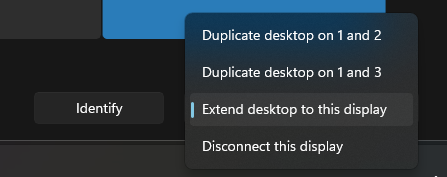
- If all monitors show the same thing but there is only 1 in display settings, please run a windows update, then restart the computer afterwards.
If you don't see the monitors above and only see 1, or if your monitors have just a black screen:
- Make sure the monitors are on and connected.
- If there is no solid white lite, press the power button behind the right side of the monitor. If nothing happens, disconnect and reconnect the power cable.
- If they are and there is a solid white light but it says no DP signal detected, disconnect and reconnect the cables from the monitor to the docking station.
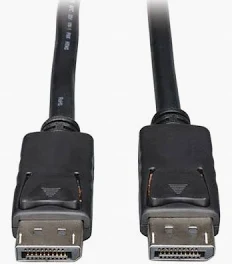
- If the monitors still show a black screen, disconnect the laptop from the docking station, then disconnect the power supply to the docking station for 30 seconds, then reconnect the power supply.
- If none of the steps above worked, please let us know for further troubleshooting.
Was this article helpful?
That’s Great!
Thank you for your feedback
Sorry! We couldn't be helpful
Thank you for your feedback
Feedback sent
We appreciate your effort and will try to fix the article